Command-line tool: pipectl
Besides using web UI, PipeCD also provides a command-line tool, pipectl, which allows you to run commands against your project’s resources. You can use pipectl to add and sync applications, wait for a deployment status.
Installation
The Pipectl command-line tool can be installed using one of the following methods:
Directly download and set up binary
Download the appropriate version for your platform from PipeCD Releases.
We recommend using the latest version of pipectl to avoid unforeseen issues. Run the following script:
# OS="darwin" or "linux"
curl -Lo ./pipectl https://github.com/pipe-cd/pipecd/releases/download/v0.58.0/pipectl_v0.58.0_{OS}_amd64
Make the pipectl binary executable.
chmod +x ./pipectlMove the binary to your PATH.
sudo mv ./pipectl /usr/local/bin/pipectlTest to ensure the version you installed is up-to-date.
pipectl version
Using Asdf
About Asdf
Add pipectl plugin to asdf. (If you have not yet
asdf add plugin add pipectl.)asdf plugin add pipectlInstall pipectl. Available versions are here.
asdf install pipectl {VERSION}Set a version.
asdf global pipectl {VERSION}Test to ensure the version you installed is up-to-date.
pipectl version
Using Aqua
About Aqua
Add pipectl to
aqua.yaml. (If you want to select a version, useaqua g -i -s pipe-cd/pipecd/pipectl)aqua g -i pipe-cd/pipecd/pipectlInstall pipectl.
aqua iTest to ensure the version you installed is up-to-date.
pipectl version
Using Homebrew
About Homebrew
Add the
pipe-cd/tapand fetch new formulae from GitHub.brew tap pipe-cd/tap brew updateInstall pipectl.
brew install pipectlTest to ensure the version you installed is up-to-date.
pipectl version
Run in Docker container
We are storing every version of docker image for pipectl on GitHub Container Registry. Available versions are here.
docker run --rm ghcr.io/pipe-cd/pipectl:{VERSION} -h
Authentication
In order for pipectl to authenticate with PipeCD’s Control Plane, it needs an API key, which can be created from Settings/API Key tab on the web UI.
There are two kinds of key role: READ_ONLY and READ_WRITE. Depending on the command, it might require an appropriate role to execute.
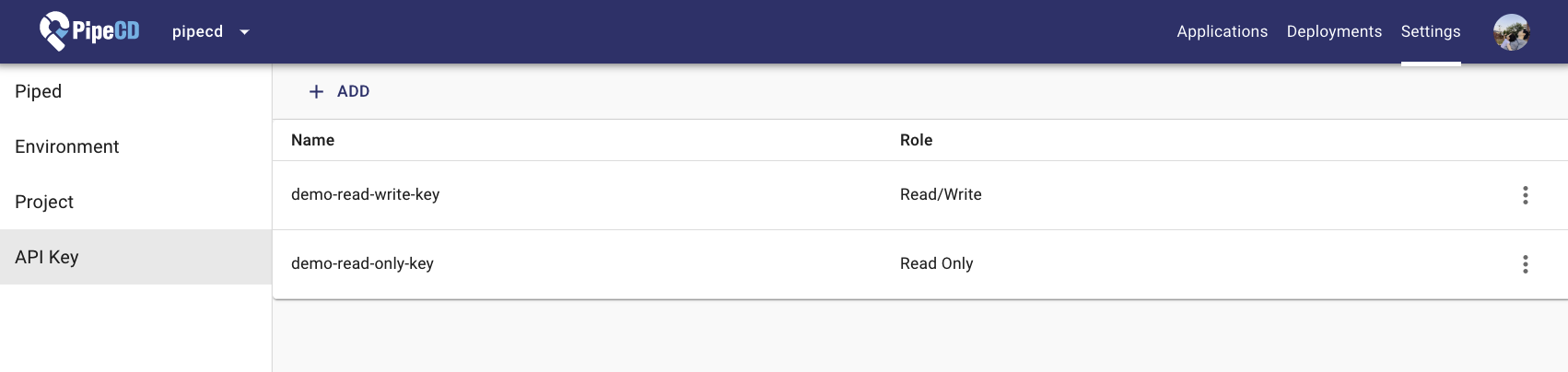
Adding a new API key from Settings tab
When executing a command of pipectl you have to specify either a string of API key via --api-key flag or a path to the API key file via --api-key-file flag.
Usage
Help
Run help to know the available commands:
$ pipectl --help

The command line tool for PipeCD.

Usage:
  pipectl [command]

Available Commands:
  application  Manage application resources.
  completion   Generate the autocompletion script for the specified shell
  deployment   Manage deployment resources.
  encrypt      Encrypt the plaintext entered in either stdin or the --input-file flag.
  event        Manage event resources.
  help         Help about any command
  migrate      Do migration tasks.
  piped        Manage piped resources.
  plan-preview Show plan preview against the specified commit.
  plugin       Do plugin tasks.
  transfer     Transfer data between control planes.
  version      Print the information of current binary.

Flags:
  -h, --help                               help for pipectl
      --log-encoding string                The encoding type for logger [json|console|humanize]. (default "humanize")
      --log-level string                   The minimum enabled logging level. (default "info")
      --metrics                            Whether metrics is enabled or not. (default true)
      --profile                            If true enables uploading the profiles to Stackdriver.
      --profile-debug-logging              If true enables logging debug information of profiler.
      --profiler-credentials-file string   The path to the credentials file using while sending profiles to Stackdriver.

Use "pipectl [command] --help" for more information about a command.
Adding a new application
Add a new application into the project:
pipectl application add \
    --address=CONTROL_PLANE_API_ADDRESS \
    --api-key=API_KEY \
    --app-name=simple \
    --app-kind=KUBERNETES \
    --piped-id=PIPED_ID \
    --platform-provider=kubernetes-default \
    --repo-id=examples \
    --app-dir=kubernetes/simple
Run help to know what command flags should be specified:
$ pipectl application add --help

Add a new application.

Usage:
  pipectl application add [flags]

Flags:
      --app-dir string            The relative path from the root of repository to the application directory.
      --app-kind string           The kind of application. (KUBERNETES|TERRAFORM|LAMBDA|CLOUDRUN|ECS)
      --app-name string           The application name.
      --platform-provider string  The platform provider name. One of the registered providers in the piped configuration. The previous name of this field is cloud-provider.
      --config-file-name string   The configuration file name. (default "app.pipecd.yaml")
      --description string        The description of the application.
  -h, --help                      help for add
      --piped-id string           The ID of piped that should handle this application.
      --repo-id string            The repository ID. One the registered repositories in the piped configuration.

Global Flags:
      --address string                     The address to Control Plane api.
      --api-key string                     The API key used while authenticating with Control Plane.
      --api-key-file string                Path to the file containing API key used while authenticating with Control Plane.
      --cert-file string                   The path to the TLS certificate file.
      --insecure                           Whether disabling transport security while connecting to Control Plane.
      --log-encoding string                The encoding type for logger [json|console|humanize]. (default "humanize")
      --log-level string                   The minimum enabled logging level. (default "info")
      --metrics                            Whether metrics is enabled or not. (default true)
      --profile                            If true enables uploading the profiles to Stackdriver.
      --profile-debug-logging              If true enables logging debug information of profiler.
      --profiler-credentials-file string   The path to the credentials file using while sending profiles to Stackdriver.
Syncing an application
Send a request to sync an application and exit immediately when the deployment is triggered:
pipectl application sync \
    --address={CONTROL_PLANE_API_ADDRESS} \
    --api-key={API_KEY} \
    --app-id={APPLICATION_ID}
Send a request to sync an application and wait until the triggered deployment reaches one of the specified statuses:
pipectl application sync \
    --address={CONTROL_PLANE_API_ADDRESS} \
    --api-key={API_KEY} \
    --app-id={APPLICATION_ID} \
    --wait-status=DEPLOYMENT_SUCCESS,DEPLOYMENT_FAILURE
Getting an application
Display the information of a given application in JSON format:
pipectl application get \
    --address={CONTROL_PLANE_API_ADDRESS} \
    --api-key={API_KEY} \
    --app-id={APPLICATION_ID}
Listing applications
Find and display the information of matching applications in JSON format:
pipectl application list \
    --address={CONTROL_PLANE_API_ADDRESS} \
    --api-key={API_KEY} \
    --app-name={APPLICATION_NAME} \
    --app-kind=KUBERNETES \
Disable an application
Disable an application with given id:
pipectl application disable \
    --address={CONTROL_PLANE_API_ADDRESS} \
    --api-key={API_KEY} \
    --app-id={APPLICATION_ID}
Deleting an application
Delete an application with given id:
pipectl application delete \
    --address={CONTROL_PLANE_API_ADDRESS} \
    --api-key={API_KEY} \
    --app-id={APPLICATION_ID}
List deployments
Show the list of deployments based on filters.
pipectl deployment list \
    --address={CONTROL_PLANE_API_ADDRESS} \
    --api-key={API_KEY} \
    --app-id={APPLICATION_ID}
Waiting a deployment status
Wait until a given deployment reaches one of the specified statuses:
pipectl deployment wait-status \
    --address={CONTROL_PLANE_API_ADDRESS} \
    --api-key={API_KEY} \
    --deployment-id={DEPLOYMENT_ID} \
    --status=DEPLOYMENT_SUCCESS
Get deployment stages log
Get deployment stages log.
pipectl deployment logs \
    --address={CONTROL_PLANE_API_ADDRESS} \
    --api-key={API_KEY} \
    --deployment-id={DEPLOYMENT_ID}
Registering an event for EventWatcher
Register an event that can be used by EventWatcher:
pipectl event register \
    --address={CONTROL_PLANE_API_ADDRESS} \
    --api-key={API_KEY} \
    --name=example-image-pushed \
    --data=gcr.io/pipecd/example:v0.1.0
See more on usage of Event Watcher.
Encrypting the data you want to use when deploying
Encrypt the plaintext entered either in stdin or via the --input-file flag.
You can encrypt it the same way you do from the web.
From stdin:
pipectl encrypt \
    --address={CONTROL_PLANE_API_ADDRESS} \
    --api-key={API_KEY} \
    --piped-id={PIPED_ID} <{PATH_TO_SECRET_FILE}
From the
--input-fileflag:pipectl encrypt \ --address={CONTROL_PLANE_API_ADDRESS} \ --api-key={API_KEY} \ --piped-id={PIPED_ID} \ --input-file={PATH_TO_SECRET_FILE}
Note: The docs for pipectl available command may be outdated. We suggest users use the
helpcommand for the updated usage while using pipectl.
Migrating application configs and database
Migrate v0 application configs and database records to be compatible with the plugin-based piped v1.
Migrating application config
Convert v0 application config files to the v1 format:
pipectl migrate application-config \
    --config-files=path/to/app.pipecd.yaml
Or migrate all application config files in a directory:
pipectl migrate application-config \
    --dirs=path/to/app/directory
The --config-files and --dirs flags are mutually exclusive; one of them is required. The original file is backed up with a .old extension.
Migrating database
Migrate database records to be compatible with plugin-architected piped:
pipectl migrate database \
    --address={CONTROL_PLANE_API_ADDRESS} \
    --api-key={API_KEY} \
    --applications={APPLICATION_ID}
The --applications flag accepts a list of application IDs and is required.
Pushing a plugin
Push a plugin binary to an OCI registry:
pipectl plugin push \
    --files=linux/amd64=./plugin-linux-amd64,linux/arm64=./plugin-linux-arm64 \
    --tag=v0.1.0 \
    --registry=ghcr.io/pipe-cd \
    --repository=my-plugin
The --files flag maps platforms to binary files in os/arch=filepath format. All of --files, --tag, --registry, and --repository are required. Add --insecure to skip TLS verification when using an HTTP-only registry.
Transferring data between control planes
Transfer pipeds and applications from one control plane to another.
Backing up data
Back up all pipeds and applications from the source control plane to a local file:
pipectl transfer backup \
    --address={SOURCE_CONTROL_PLANE_API_ADDRESS} \
    --api-key={SOURCE_API_KEY} \
    --output-file=backup.json
Add --labels to filter applications by labels (comma-separated KEY:VALUE pairs, e.g. --labels=env:prod,team:backend). Deployment history is not included, because the API does not expose a write endpoint for deployments.
Restoring data
Restoring is a two-step process, because the control plane validates that each application’s Git repository is registered on the target piped before the application can be created, and repository registration only happens after the piped agent connects.
Register the pipeds on the target control plane, then update each piped’s configuration with the new ID and key before restarting the piped agents:
pipectl transfer restore piped \
    --address={TARGET_CONTROL_PLANE_API_ADDRESS} \
    --api-key={TARGET_API_KEY} \
    --input-file=backup.json \
    --output-file=mapping.json
Once the piped agents have reconnected to the target control plane and registered their repositories, restore the applications:
pipectl transfer restore application \
    --address={TARGET_CONTROL_PLANE_API_ADDRESS} \
    --api-key={TARGET_API_KEY} \
    --input-file=backup.json \
    --piped-id-mapping-file=mapping.json
Disabled applications from the source are restored and immediately re-disabled on the target to preserve their original status.
You want more?
We always want to add more needed commands into pipectl. Please let us know what command you want to add by creating issues in the pipe-cd/pipecd repository. We also welcome your pull request to add the command.
Feedback
Was this page helpful?
Glad to hear it! Please tell us how we can improve.
Sorry to hear that. Please tell us how we can improve.
